GPT Image 2.6 SVG Logo & Icon Workflow
Last updated:
Writing a prompt for native SVG generation is different from prompting photorealistic image models. Words like “cinematic lighting”, “bokeh”, or “3Doctane render” fight against clean vector geometry. Use this practical checklist to get crisp, sub-2KB <svg> files on your first credit.
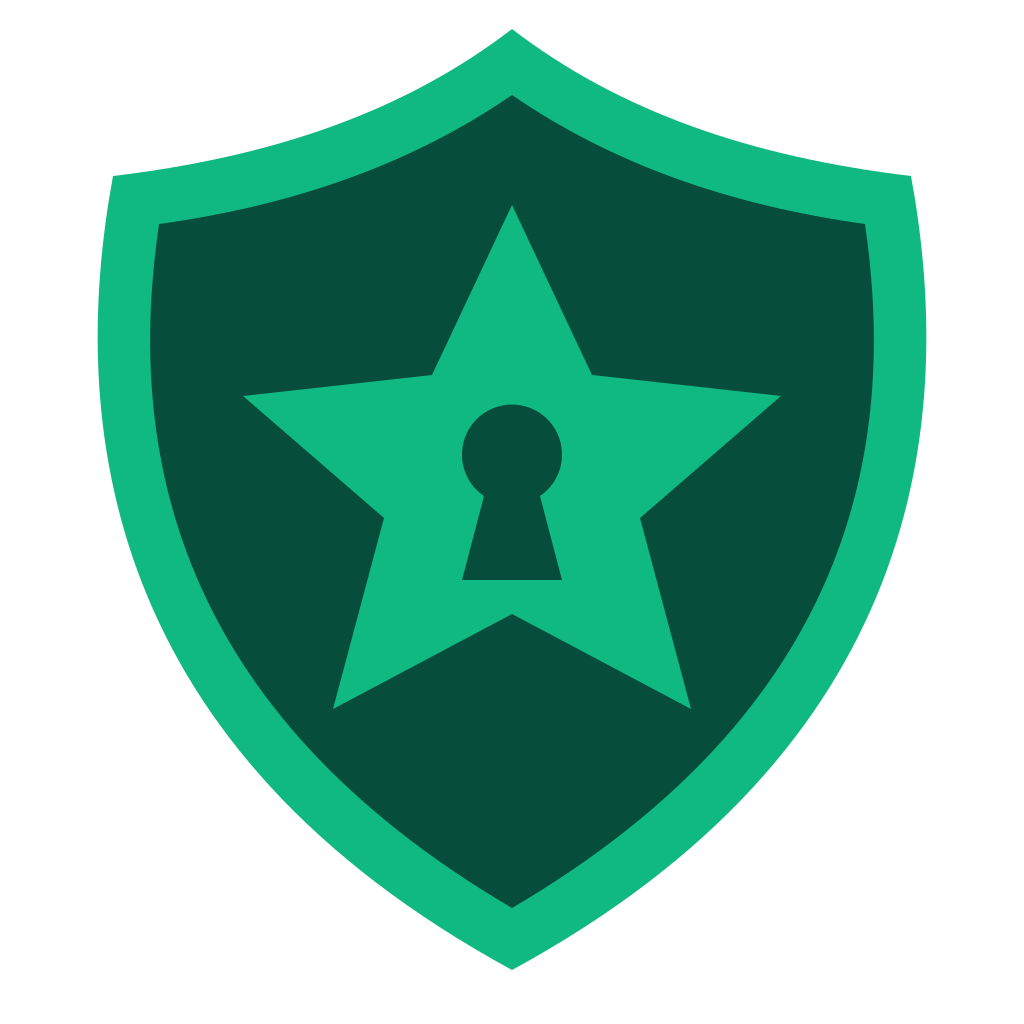
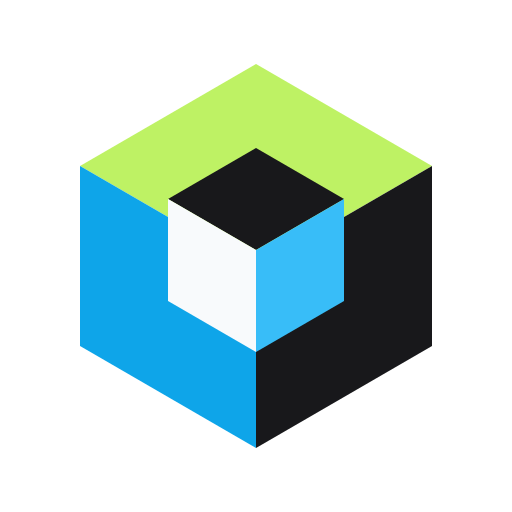
Sample native SVG outputs

1. Lead with subject + geometric structure, not lighting
Start your prompt by naming a single clear subject and how its silhouette is constructed: for example, “Minimal geometric origami fox head mark” or “Symmetrical cybersecurity shield badge with central checkmark cutout.”
Avoid atmospheric adjectives such as volumetric fog, lens flare, metallic sheen, or photorealistic fur. Those cues push any model toward approximating gradients with dozens of overlapping micro-shapes instead of bold, unified paths.
2. Cap your color palette at 2 to 4 flat fills
Great logos and UI icons work in monochrome first and a tight palette second. Naming 2 to 4 high-contrast colors—such as “warm tangerine, deep slate, and cream” or “obsidian black and lime chartreuse”—keeps path overlap clean and makes live palette swapping in our workbench effortless.
When you select one of the 8 presets in GPTSVG Studio (such as Minimal Geometric, Lettermark, or Monoline UI Icon), we automatically append flat-vector constraints so you only need to describe your concept.
3. Prompting custom wordmarks and lettermarks
GPT-Image-2.6 handles short 3-to-7 character brand names remarkably well in SVG mode. Put the exact wordmark in uppercase quotes and describe one structural twist: for example, “Bold geometric wordmark ‘VOLT’ with a negative-space lightning cut in the V.”
Inspect the resulting SVG in Figma after downloading. Because each glyph is typically emitted as its own <path id="letter-...">, you can adjust optical spacing or align baselines in seconds.
4. Designing 24×24 monoline UI icons for React
For product interfaces, choose the Monoline UI Icon preset and specify simple metaphors—one or two nouns at most, such as “cloud deploy rocket” or “encrypted folder lock.”
Once generated, toggle between Light and Dark canvas backgrounds in the workbench to verify contrast, then use Copy JSX to paste the component straight into your Next.js, Remix, or Vite codebase.
5. Preparing die-cut stickers & converting raster sketches
For stickers, select Die-Cut Mascot Sticker so the model builds a bold outer contour around the character on a transparent canvas. Export the master .svg for vinyl cutter software or export a 4096×4096 transparent PNG for print-on-demand upload.
Starting from a hand-drawn sketch or existing PNG logo? Open /image-to-svg: try the 0-credit local browser vectorizer first for crisp logos, or run the 1-credit AI Vector Redraw to clean up rough pencil lines and camera shadows.
FAQ
How many colors should I ask for in a logo prompt?
Stick to 2–4 solid colors (or monochrome). Fewer colors yield cleaner closed bezier paths and make one-click recoloring in Figma or GPTSVG Studio much faster.
Can I paste GPTSVG Studio outputs directly into Figma?
Yes. Copying raw SVG markup and pressing Cmd/Ctrl+V on a Figma canvas pastes editable vector frames and named path groups immediately.
What if an AI generation fails?
Any job that fails or times out automatically refunds its 1 credit back to your account balance.
Ready to ship clean, editable SVG vectors?
Generate your first SVG